
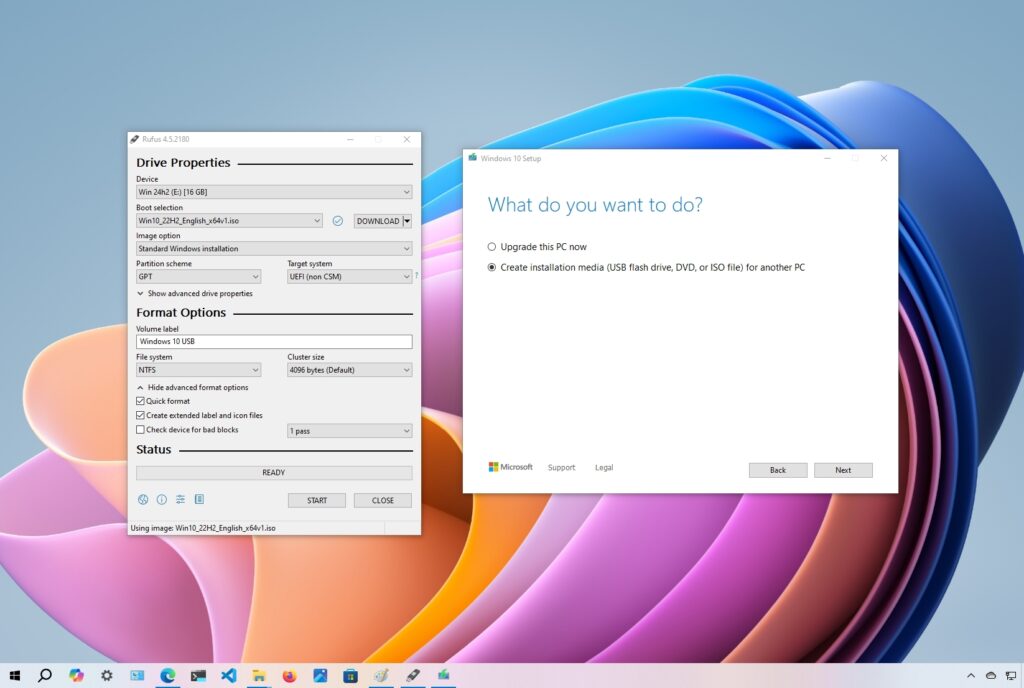
A bootable Windows USB allows users to install or repair Windows quickly. It is one of the most useful tools for troubleshooting and reinstalling operating systems.
What You Need
- USB drive (8GB or larger)
- Windows ISO file
- USB creation software
Step 1 – Download the Windows ISO
Download the official Windows ISO from Microsoft or a trusted source.
Step 2 – Use Rufus or Media Creation Tool
Popular tools:
Using Rufus:
- Insert the USB drive
- Open Rufus
- Select the Windows ISO
- Choose GPT or MBR partition type
- Click “Start”
Step 3 – Boot From USB
Restart the computer and open the Boot Menu.
Common boot keys:
- F12
- ESC
- DEL
- F9
Select the USB device to start Windows installation.
Common Problems
USB Not Detected
- Try another USB port
- Recreate the bootable drive
- Check BIOS boot settings
Installation Errors
- Verify ISO integrity
- Use a different USB drive
- Disable Secure Boot if necessary
Final Thoughts
Creating a bootable Windows USB is an essential skill for troubleshooting, reinstalling Windows, and repairing computers efficiently.